When to use the Order Confirmation
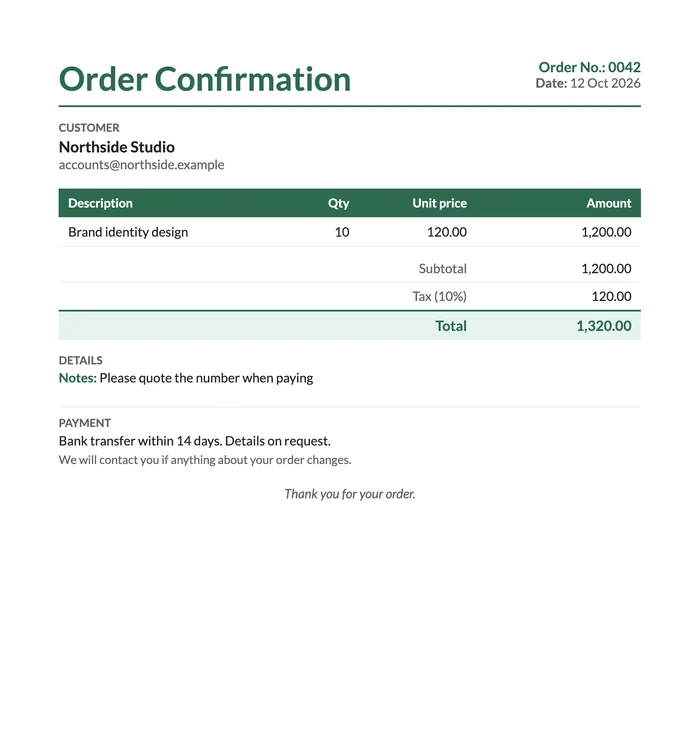
An order confirmation gives a customer a record of what they bought straight after they ordered. Makers on social media, bakeries taking pre-orders, small web shops and local delivery services use it so that both sides agree on the details. The form is the order form, and the PDF is the confirmation. A green header and a calm layout make it feel like a proper business document.
Questions to ask in your form
Create these questions in your Google Form. The PDF is built from the questions you ask, so rename, add or drop any of them.
- Customer name Short answerPrinted under 'Customer'.
- Customer email Short answerWhere the confirmation is sent.
- Item ordered Short answerFor example 'Birthday cake, chocolate, 12 slices'.
- Quantity Short answerA number.
- Unit price Short answerA number. Totals are calculated from it.
- Delivery or pickup details ParagraphOptional. Appears in the notes.
What the PDF contains
A page headed 'Order Confirmation' with an order number and date. The customer block is followed by a table with description, quantity, unit price and amount, then subtotal, tax and total. The terms line says 'We will contact you if anything about your order changes.' and the page closes with a thank-you.
Set it up in three steps
- Install the add-on. Add FairSign Forms to PDF to Google Forms from the Google Workspace Marketplace. It is free to install.
- Pick this template. Open your form, click the puzzle-piece icon (or the three-dot menu, then Add-ons), and open FairSign Forms to PDF. In step 1, choose Order Confirmation from the template library. It opens as a Google Doc in your Drive.
- Turn on sending. Tell the add-on which question holds the email address, send a test to yourself, then switch on automatic sending. Each new response is turned into a PDF and emailed to the person.
Tips for the Order Confirmation
- Show the price as the customer sees it. If prices include tax, set the tax rate to 0 in the add-on, otherwise the total shows tax twice.
- Say when you expect to deliver or when the order will be ready, in the delivery question. It prevents a great deal of chasing.
- A confirmation is not a receipt. Send a receipt once the payment arrives.
Note. This template is not legal or tax advice. Invoice rules, tax numbers and wording differ by country. Check what applies to you before you send an invoice.
Questions people ask
Can customers pay on this form?
No. FairSign does not take payments. Say how to pay in the notes or on your order page.
Can I list several items?
One response holds one item line. For several, write them in the notes or take separate responses.
Can I edit the Order Confirmation before I use it?
Yes. Choosing it in the add-on creates a Google Doc in your Drive. Change the wording, fonts or colours, add a logo, and keep the {{placeholders}} in double braces where answers should appear.