When to use the Delivery Note
A delivery note travels with goods or is sent after them. It says what was delivered and gives the customer a chance to check it. Couriers, small manufacturers, caterers and wholesalers use it. A form works well for a driver or packer, who types the details once and gets a PDF to forward. It does not show prices, which makes it suitable for people who should see what arrived but not what it cost.
Questions to ask in your form
Create these questions in your Google Form. The PDF is built from the questions you ask, so rename, add or drop any of them.
- Delivered to Short answerName and company.
- Customer email Short answerWhere the note is sent.
- Items ParagraphList each item and quantity, for example '12 boxes, assorted'.
- Delivery date DateThe day it was handed over.
- Order or PO number Short answerOptional, so the note matches the order.
- Delivered by Short answerOptional. Driver or team name.
What the PDF contains
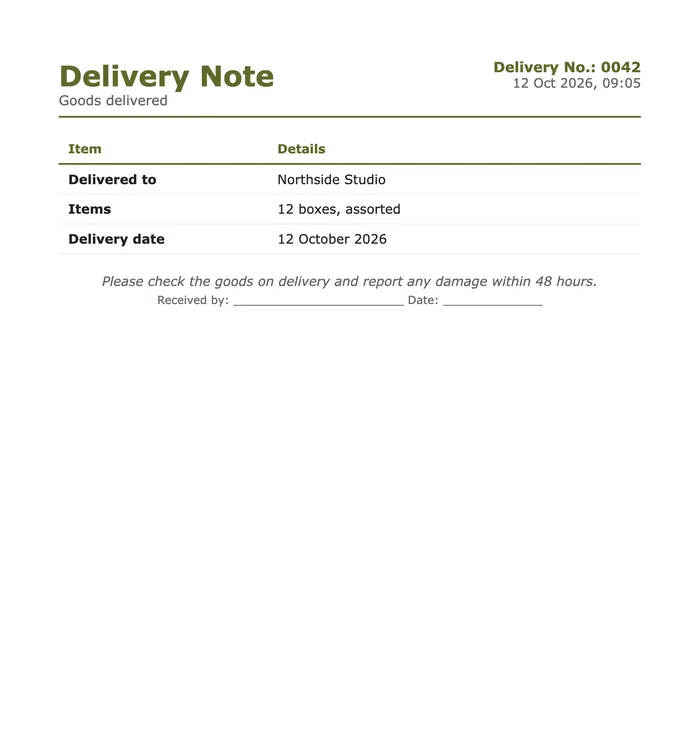
An olive page headed 'Delivery Note' with 'Goods delivered' beneath it. The delivery number and submission time are at the top right. Rows list who it was delivered to, the items and the date. A line asks the customer to check the goods on delivery and report any damage within 48 hours, with blank lines for 'Received by' and the date.
Set it up in three steps
- Install the add-on. Add FairSign Forms to PDF to Google Forms from the Google Workspace Marketplace. It is free to install.
- Pick this template. Open your form, click the puzzle-piece icon (or the three-dot menu, then Add-ons), and open FairSign Forms to PDF. In step 1, choose Delivery Note from the template library. It opens as a Google Doc in your Drive.
- Turn on sending. Tell the add-on which question holds the email address, send a test to yourself, then switch on automatic sending. Each new response is turned into a PDF and emailed to the person.
Tips for the Delivery Note
- The 48 hours wording is a default. Change it in the Google Doc if your terms are different.
- The 'Received by' lines are for a pen. Print the note and have the customer sign it, or ask them to reply to confirm.
- Put the order or PO number in the first question, so the note, the order and the invoice can be matched later.
Note. This template is not legal or tax advice. Invoice rules, tax numbers and wording differ by country. Check what applies to you before you send an invoice.
Questions people ask
Does it show prices?
No. It lists what was delivered. Use an invoice if you want prices.
Can the customer sign on screen?
No. FairSign does not collect signatures. The page has a printed line.
Can I edit the Delivery Note before I use it?
Yes. Choosing it in the add-on creates a Google Doc in your Drive. Change the wording, fonts or colours, add a logo, and keep the {{placeholders}} in double braces where answers should appear.