When to use the Quotation
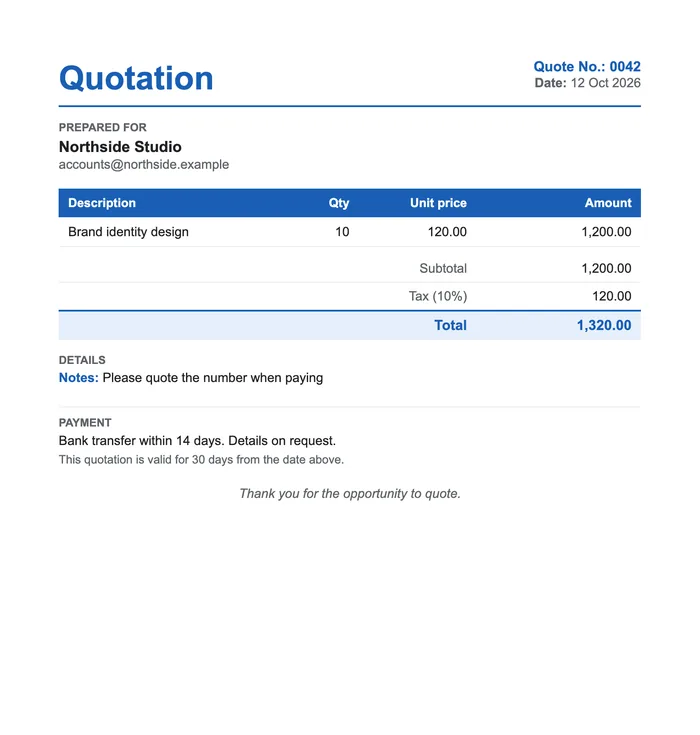
A quotation is a written price for work you have not done yet. Freelancers, builders, caterers, print shops and small agencies send them after an enquiry. A request form on your website can double as the first step: the customer says what they want, and you fill the answers into a quote that goes straight to their inbox. The blue page shows the item, quantity, unit price and a calculated total, with a validity line at the bottom.
Questions to ask in your form
Create these questions in your Google Form. The PDF is built from the questions you ask, so rename, add or drop any of them.
- Customer name Short answerPrinted under 'Prepared for'.
- Customer email Short answerPrinted on the quote and used to send it.
- Item or service Short answerFor example 'Brand identity design'.
- Quantity Short answerA number. Used to work out the total.
- Unit price Short answerA number without a currency symbol. The currency is set in the add-on.
- Notes ParagraphOptional. Appears under Details.
What the PDF contains
A page headed 'Quotation' with a quote number and date at the top right and a 'Prepared for' block with the customer name and email. A table lists the description, quantity, unit price and amount, followed by subtotal, tax and a highlighted total. Notes and payment instructions sit below, and the page ends with 'This quotation is valid for 30 days from the date above'.
Set it up in three steps
- Install the add-on. Add FairSign Forms to PDF to Google Forms from the Google Workspace Marketplace. It is free to install.
- Pick this template. Open your form, click the puzzle-piece icon (or the three-dot menu, then Add-ons), and open FairSign Forms to PDF. In step 1, choose Quotation from the template library. It opens as a Google Doc in your Drive.
- Turn on sending. Tell the add-on which question holds the email address, send a test to yourself, then switch on automatic sending. Each new response is turned into a PDF and emailed to the person.
Tips for the Quotation
- The page says the quote is valid for 30 days. If your validity is different, change the sentence in the Google Doc before you send the first one.
- Set the currency and the tax rate in the add-on's invoice settings. The rate applies to every quote made with that setup.
- One form response makes one line item. For a quote with several lines, write each as a separate quote or list extras in Notes.
Note. This template is not legal or tax advice. Invoice rules, tax numbers and wording differ by country. Check what applies to you before you send an invoice.
Questions people ask
Is a quote the same as an estimate?
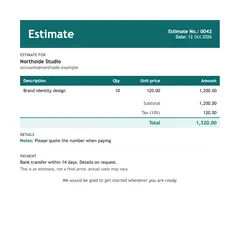
A quote is usually a fixed price. An estimate is a best guess that may change. The Estimate template has wording for that.
Can the customer accept the quote online?
Not with FairSign. The PDF is a document. The customer replies by email or in your usual way.
Can I edit the Quotation before I use it?
Yes. Choosing it in the add-on creates a Google Doc in your Drive. Change the wording, fonts or colours, add a logo, and keep the {{placeholders}} in double braces where answers should appear.