When to use the Event Badge
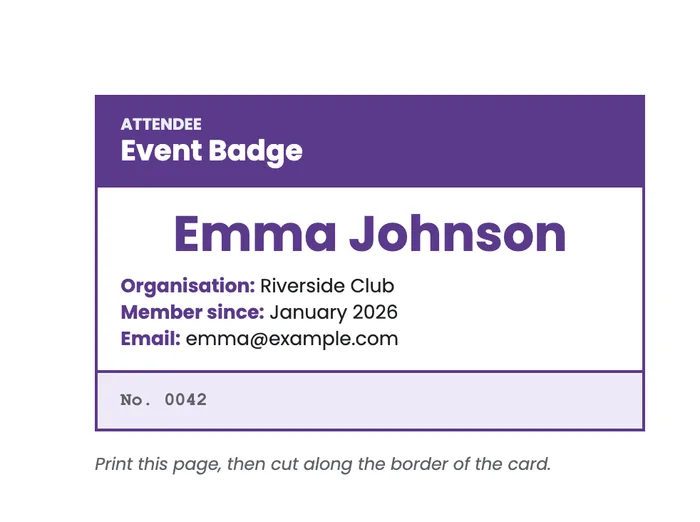
An event badge shows an attendee's name and organisation at a conference, workshop or meetup. Organisers use a registration form to collect details, and each attendee, or the person at the desk, prints a badge. The purple badge has the label 'Attendee' on top and the name in large type, which is easy to read across a room. It suits small to medium events where you print on the day or send badges ahead.
Questions to ask in your form
Create these questions in your Google Form. The PDF is built from the questions you ask, so rename, add or drop any of them.
- Name as it should appear on the badge Short answerPrinted large and centred.
- Email address Short answerWhere the badge is sent.
- Organisation Short answerAppears as a labelled line.
- Role or ticket type DropdownFor example 'Speaker', 'Attendee', 'Sponsor'.
- Pronouns Short answerOptional.
- Dietary needs Short answerOptional. Think before putting it on a badge.
What the PDF contains
A page with a single badge about 4 inches wide. A purple header carries the label 'Attendee' and the words 'Event Badge'. The name is large and centred, and each further answer is a labelled line. A pale strip at the bottom shows a number, and a note under the badge says to print the page and cut along the border.
Set it up in three steps
- Install the add-on. Add FairSign Forms to PDF to Google Forms from the Google Workspace Marketplace. It is free to install.
- Pick this template. Open your form, click the puzzle-piece icon (or the three-dot menu, then Add-ons), and open FairSign Forms to PDF. In step 1, choose Event Badge from the template library. It opens as a Google Doc in your Drive.
- Turn on sending. Tell the add-on which question holds the email address, send a test to yourself, then switch on automatic sending. Each new response is turned into a PDF and emailed to the person.
Tips for the Event Badge
- Ask for the name as it should appear. People want 'Sam' on a badge even if they registered as 'Samuel'.
- Use a role dropdown and print speakers' badges on a different day, or use a different Doc, if you want them to stand out.
- Print a few spare sheets and a marker for walk-ins, since not everyone registers ahead.
Questions people ask
Does it print many badges at once?
Each response makes one PDF page. For a large event you would print them one at a time or collect and print the PDFs.
Can I add a QR code?
No. The template has no barcode or QR code.
Can I edit the Event Badge before I use it?
Yes. Choosing it in the add-on creates a Google Doc in your Drive. Change the wording, fonts or colours, add a logo, and keep the {{placeholders}} in double braces where answers should appear.