When to use the Event Registration
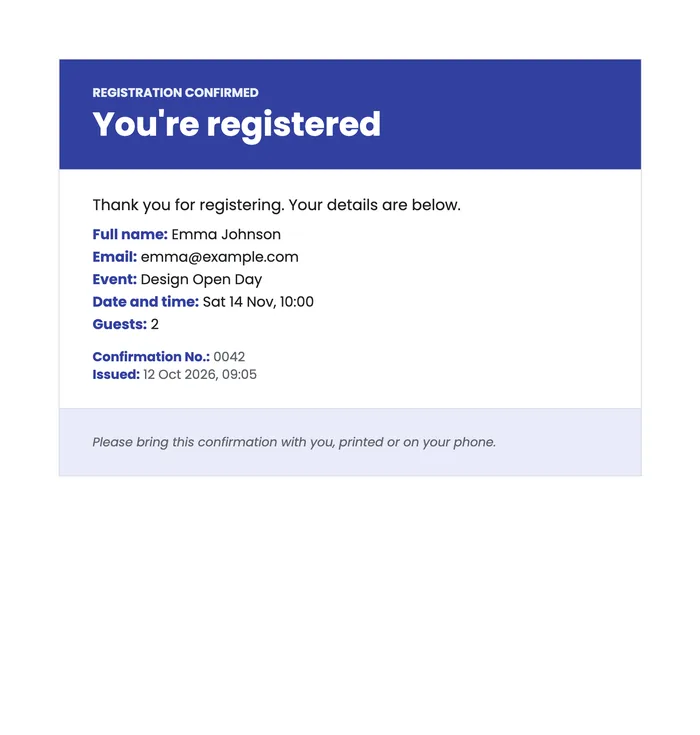
An event registration confirmation tells someone they are signed up and repeats the details they gave. Meetup hosts, community centres, schools running open days and conference teams use it to cut down on 'Did my registration go through?' emails. The indigo banner reads 'You're registered', and the bottom strip reminds people to bring the confirmation, printed or on a phone. It is a record for the guest, not a ticket that is scanned at the door.
Questions to ask in your form
Create these questions in your Google Form. The PDF is built from the questions you ask, so rename, add or drop any of them.
- Full name Short answerFirst row of the details.
- Email address Short answerWhere the confirmation is sent.
- Event or session DropdownOffer one choice per session if you run several.
- Date and time DropdownList the slots, to keep wording uniform.
- Number of guests Short answerA number. Useful for headcounts.
- Dietary or access needs ParagraphOptional.
What the PDF contains
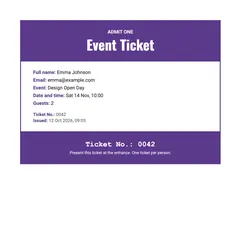
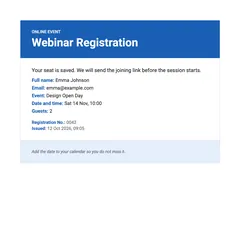
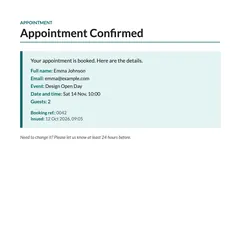
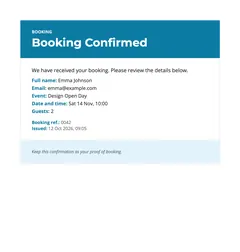
A page with an indigo banner reading 'Registration confirmed' and 'You're registered'. Under it, 'Thank you for registering. Your details are below.' and a list of every answer as a label and a value. A confirmation number and the issue time follow, and a pale strip at the bottom asks guests to bring the confirmation.
Set it up in three steps
- Install the add-on. Add FairSign Forms to PDF to Google Forms from the Google Workspace Marketplace. It is free to install.
- Pick this template. Open your form, click the puzzle-piece icon (or the three-dot menu, then Add-ons), and open FairSign Forms to PDF. In step 1, choose Event Registration from the template library. It opens as a Google Doc in your Drive.
- Turn on sending. Tell the add-on which question holds the email address, send a test to yourself, then switch on automatic sending. Each new response is turned into a PDF and emailed to the person.
Tips for the Event Registration
- Put the venue address and the start time in the form description or in the Google Doc so that the guest has everything on one page.
- Use a dropdown for sessions with limited seats, and close the form (or remove the option) when a session is full. A form cannot count seats by itself.
- For a scannable ticket or a check-in list, use the Admission Ticket template and keep your own guest list.
Questions people ask
Does it hold a seat?
No. FairSign sends the confirmation. Seat limits come from your form settings, so remove a session when it fills.
Can guests register for friends?
Ask for the number of guests. The PDF repeats the number, but each guest is not listed separately.
Can I edit the Event Registration before I use it?
Yes. Choosing it in the add-on creates a Google Doc in your Drive. Change the wording, fonts or colours, add a logo, and keep the {{placeholders}} in double braces where answers should appear.