When to use the Library Card
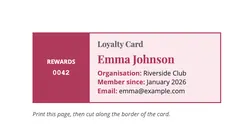
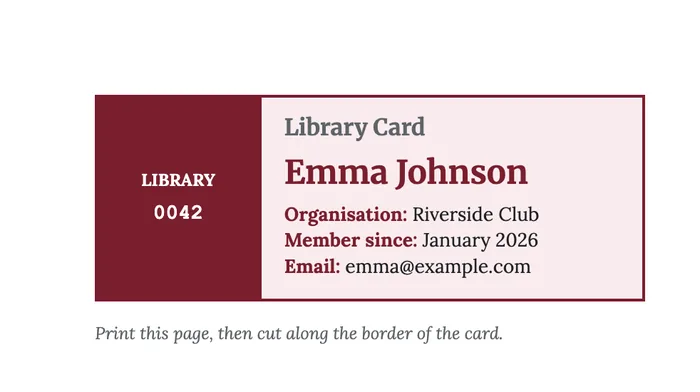
A library card shows that someone can borrow from a collection. Small libraries, reading rooms, school resource centres, toy libraries and tool-lending groups use it. A sign-up form collects the name and details, and the PDF is a burgundy-sided card with the borrower number down the left and the name and organisation on the right. It lets small collections give out a card with no printing service or card machine.
Questions to ask in your form
Create these questions in your Google Form. The PDF is built from the questions you ask, so rename, add or drop any of them.
- Borrower full name Short answerThe first question is the name on the card.
- Email address Short answerWhere the card is sent.
- Library or collection Short answerPrinted as a labelled line.
- Member since DateOptional.
- Borrower category DropdownAdult, child, family.
- Phone number Short answerOptional.
What the PDF contains
A page with a landscape card about 4 inches wide. A burgundy block on the left shows the label 'Library' and a number such as 0042. On the right are the words 'Library Card', the borrower's name in large type and a labelled line for each further answer. Under the card is the note to print the page and cut along the border.
Set it up in three steps
- Install the add-on. Add FairSign Forms to PDF to Google Forms from the Google Workspace Marketplace. It is free to install.
- Pick this template. Open your form, click the puzzle-piece icon (or the three-dot menu, then Add-ons), and open FairSign Forms to PDF. In step 1, choose Library Card from the template library. It opens as a Google Doc in your Drive.
- Turn on sending. Tell the add-on which question holds the email address, send a test to yourself, then switch on automatic sending. Each new response is turned into a PDF and emailed to the person.
Tips for the Library Card
- Keep a list of borrower numbers in the response sheet. It is the simplest way to check a card at the desk.
- Add your opening hours or a phone number to the Google Doc, below the card, and they print on every page.
- Children's cards often need a parent's name. Ask for it as an extra question.
Questions people ask
Does it work with a lending system?
No. It makes a printable card. Borrowing records live in your own list or system.
Is it suitable for a toy or tool library?
Yes. Change the 'Library' label in the Doc if you want a different word.
Can I edit the Library Card before I use it?
Yes. Choosing it in the add-on creates a Google Doc in your Drive. Change the wording, fonts or colours, add a logo, and keep the {{placeholders}} in double braces where answers should appear.