When to use the Refund Receipt
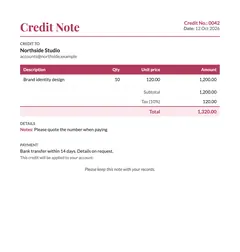
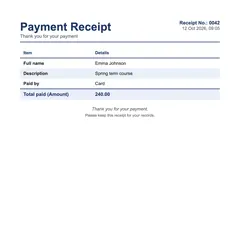
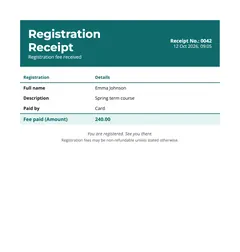
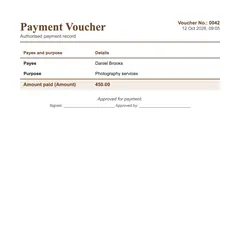
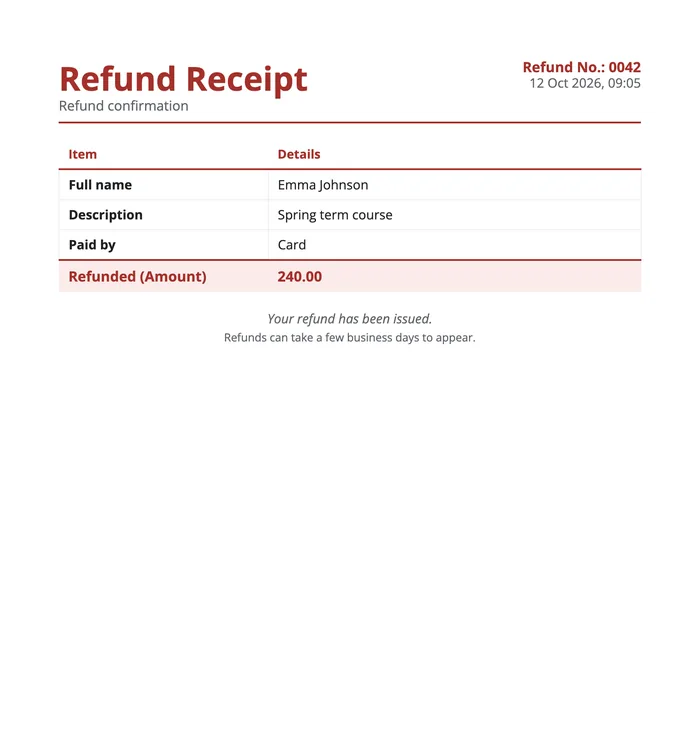
A refund receipt confirms that money has gone back to a customer. Online sellers, event organisers, studios and landlords issue them after cancellations and returns. A written record helps the customer reconcile their bank statement and protects you if there is a later query. The page uses a red rule so it is not mistaken for a payment receipt.
Questions to ask in your form
Create these questions in your Google Form. The PDF is built from the questions you ask, so rename, add or drop any of them.
- Customer name Short answerShown in the first row.
- Customer email Short answerWhere the receipt is sent.
- Item or booking refunded Short answerSay what the refund relates to.
- Refunded to DropdownOriginal card, bank transfer or cash.
- Refund amount Short answerName it Amount or Refund. It becomes the bold 'Refunded' row.
- Reason Short answerOptional, such as the cancellation reason.
What the PDF contains
A red-ruled page headed 'Refund Receipt' with 'Refund confirmation' under it. Boxed rows list your answers and the refunded amount sits in a shaded, bold row at the end. The page says 'Your refund has been issued' and notes that refunds can take a few business days to appear.
Set it up in three steps
- Install the add-on. Add FairSign Forms to PDF to Google Forms from the Google Workspace Marketplace. It is free to install.
- Pick this template. Open your form, click the puzzle-piece icon (or the three-dot menu, then Add-ons), and open FairSign Forms to PDF. In step 1, choose Refund Receipt from the template library. It opens as a Google Doc in your Drive.
- Turn on sending. Tell the add-on which question holds the email address, send a test to yourself, then switch on automatic sending. Each new response is turned into a PDF and emailed to the person.
Tips for the Refund Receipt
- Issue the receipt after the refund is made, not before, so the page is true on the day it is sent.
- Include the original receipt or order number in the item answer. It ties the refund to the first payment.
- The note about a few business days is generic. Edit it in the Google Doc to match your payment provider.
- Keep a short list of refunds by month. The response sheet already holds every refund receipt with a time stamp, which makes the monthly total easy to check.
Note. This template is not legal or tax advice. Rules for receipts, record keeping and tax differ by country. Check what applies to you before you rely on a receipt.
Questions people ask
Does this send the refund itself?
No. FairSign only creates the PDF. Process the refund in your payment system.
Can I do partial refunds?
Yes. Enter the amount that was returned. The page shows the refunded total only.
Can I edit the Refund Receipt before I use it?
Yes. Choosing it in the add-on creates a Google Doc in your Drive. Change the wording, fonts or colours, add a logo, and keep the {{placeholders}} in double braces where answers should appear.