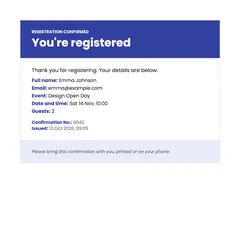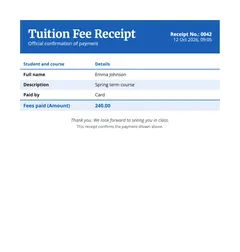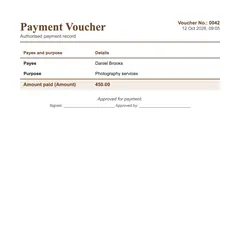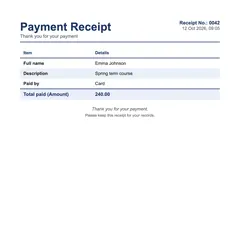
When to use the Registration Fee Receipt
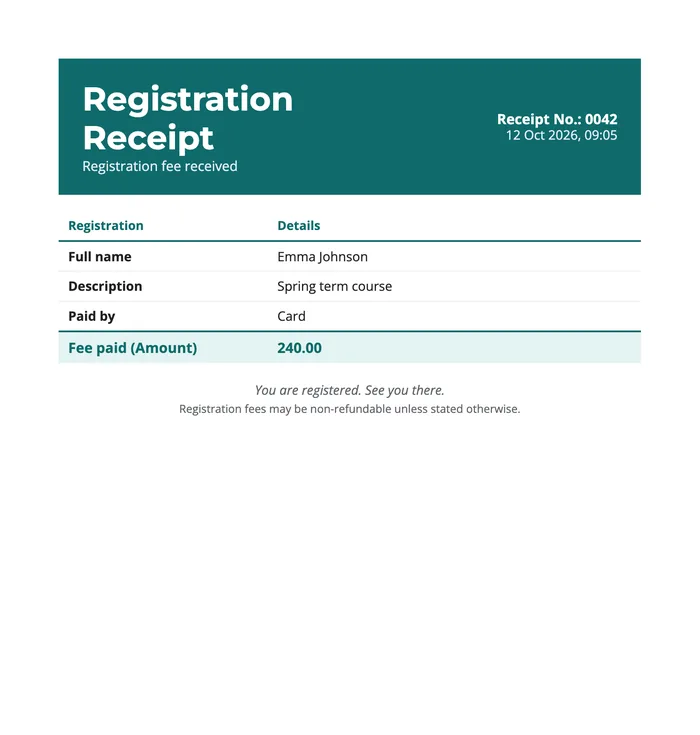
A registration fee receipt confirms that someone paid to sign up for something: a race, a conference, a summer programme or a league season. Organisers use it right after the sign-up form, so each participant has proof of payment in their inbox. Teams often need it for an expense claim. The teal banner is clear and professional, with the fee shown last in bold.
Questions to ask in your form
Create these questions in your Google Form. The PDF is built from the questions you ask, so rename, add or drop any of them.
- Participant name Short answerShown at the top of the registration table.
- Email address Short answerWhere the receipt is sent.
- Event or programme DropdownA dropdown stops people typing it differently.
- Category or entry type DropdownFor example 'Adult 10K' or 'Student'.
- Fee paid Short answerName it Fee or Amount to highlight it.
- Paid by DropdownMethod of payment.
What the PDF contains
A teal banner with 'Registration Receipt' and 'Registration fee received'. A registration table with ruled rows holds your answers, and the fee paid is highlighted at the bottom. A short line says 'You are registered. See you there.' and a note explains that fees may be non-refundable unless stated otherwise.
Set it up in three steps
- Install the add-on. Add FairSign Forms to PDF to Google Forms from the Google Workspace Marketplace. It is free to install.
- Pick this template. Open your form, click the puzzle-piece icon (or the three-dot menu, then Add-ons), and open FairSign Forms to PDF. In step 1, choose Registration Fee Receipt from the template library. It opens as a Google Doc in your Drive.
- Turn on sending. Tell the add-on which question holds the email address, send a test to yourself, then switch on automatic sending. Each new response is turned into a PDF and emailed to the person.
Tips for the Registration Fee Receipt
- Say in the form whether the fee is refundable. The footer note is generic, so write your real policy in the Doc.
- If you need a confirmation with date and time as well, pair this with the Event Registration template.
- Keep the event name in a dropdown, and your response sheet becomes a ready-made list of entries per event.
Note. This template is not legal or tax advice. Rules for receipts, record keeping and tax differ by country. Check what applies to you before you rely on a receipt.
Questions people ask
Can this double as a ticket?
Not really. It confirms payment. For entry, use the Admission Ticket or Event Registration template.
Can I offer discounts?
Yes. Ask the discount code as a question, then type the final amount. The PDF shows the answers as given.
Can I edit the Registration Fee Receipt before I use it?
Yes. Choosing it in the add-on creates a Google Doc in your Drive. Change the wording, fonts or colours, add a logo, and keep the {{placeholders}} in double braces where answers should appear.