When to use the Staff ID Card
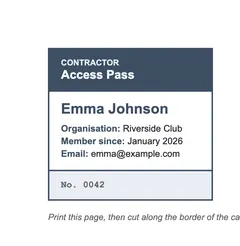
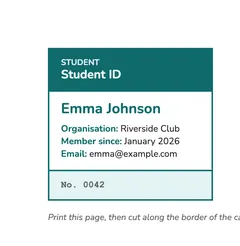
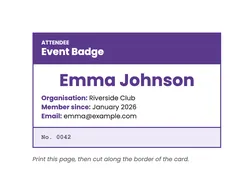
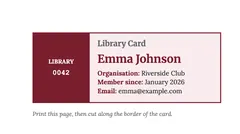
A staff ID card helps colleagues and visitors recognise who works at a place. Small companies, shops, clinics, schools and volunteer teams print them at onboarding. A short form collects the name, role and start date, and the PDF is a tall navy card about 2.4 inches wide with a staff number at the bottom. It is a simple identification card for people who know each other, with no photo and no access control.
Questions to ask in your form
Create these questions in your Google Form. The PDF is built from the questions you ask, so rename, add or drop any of them.
- Full name Short answerThe first question is the name on the card.
- Work email Short answerWhere the card is sent.
- Organisation or team Short answerPrinted as a labelled line.
- Job title Short answerOptional. Add it as another line.
- Start date DateOptional.
- Emergency contact Short answerOptional. Think before printing it on a card.
What the PDF contains
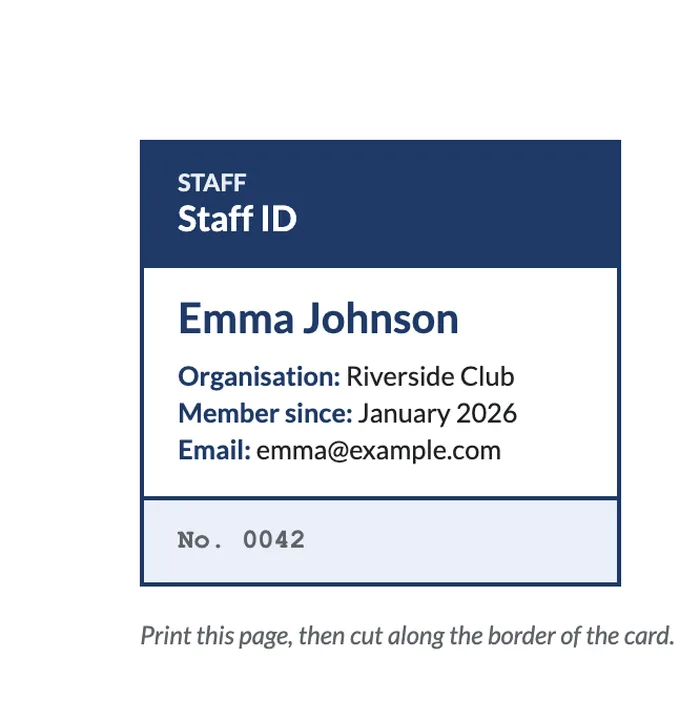
A page with a portrait card about 2.4 inches wide. A navy header carries the label 'Staff' and the words 'Staff ID'. The name is large below it, followed by a labelled line for each answer, and a pale strip at the bottom shows a number like No. 0042. A short note under the card says to print the page and cut along the border.
Set it up in three steps
- Install the add-on. Add FairSign Forms to PDF to Google Forms from the Google Workspace Marketplace. It is free to install.
- Pick this template. Open your form, click the puzzle-piece icon (or the three-dot menu, then Add-ons), and open FairSign Forms to PDF. In step 1, choose Staff ID Card from the template library. It opens as a Google Doc in your Drive.
- Turn on sending. Tell the add-on which question holds the email address, send a test to yourself, then switch on automatic sending. Each new response is turned into a PDF and emailed to the person.
Tips for the Staff ID Card
- Print only what a stranger needs to see. A card can be lost, so keep phone numbers and home details off it.
- There is no photo box. If you need a photo, stick one on, or use a lanyard card from a dedicated ID printer.
- For building access you need a proper access system. A printed card is for identification only.
Questions people ask
Can I print several cards on one sheet?
Each response makes its own page. You can print several and cut them, but they are not tiled on one sheet.
Can I change the colour?
Open the Google Doc and change the header colour. New cards will use it.
Can I edit the Staff ID Card before I use it?
Yes. Choosing it in the add-on creates a Google Doc in your Drive. Change the wording, fonts or colours, add a logo, and keep the {{placeholders}} in double braces where answers should appear.