When to use the Appointment Confirmation
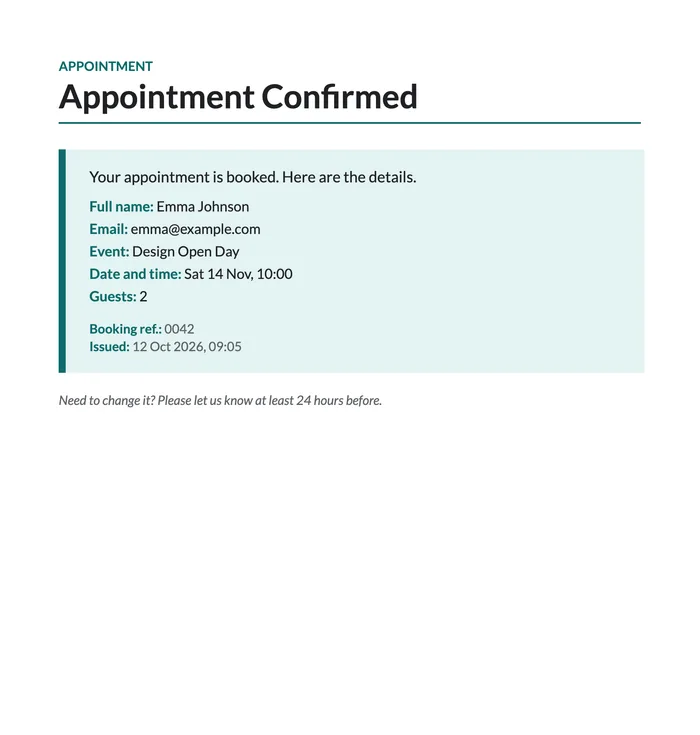
An appointment confirmation reassures a client that their booking exists and tells them when to arrive. Clinics, salons, tutors, accountants, therapists and mobile repair services use them. Clients can book by choosing a slot in a Google Form, and the PDF lands in their inbox with the details. The teal-green block makes the key facts easy to find, and the page ends by asking for 24 hours' notice of changes.
Questions to ask in your form
Create these questions in your Google Form. The PDF is built from the questions you ask, so rename, add or drop any of them.
- Full name Short answerFirst row of the details.
- Email address Short answerWhere the confirmation goes.
- Service DropdownFor example 'Initial consultation, 45 minutes'.
- Preferred date and time Short answerType 'Sat 14 Nov, 10:00', or use a dropdown of free slots.
- Phone number Short answerOptional, in case you need to reach them.
- Anything we should know ParagraphOptional. Allergies, access needs, preferences.
What the PDF contains
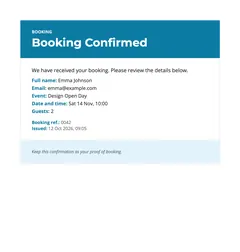
A page headed 'Appointment Confirmed' under the small label 'Appointment', with a rule below. A pale teal block says 'Your appointment is booked. Here are the details.' and lists every answer. A booking reference and the issue time follow, and under the block is 'Need to change it? Please let us know at least 24 hours before.'
Set it up in three steps
- Install the add-on. Add FairSign Forms to PDF to Google Forms from the Google Workspace Marketplace. It is free to install.
- Pick this template. Open your form, click the puzzle-piece icon (or the three-dot menu, then Add-ons), and open FairSign Forms to PDF. In step 1, choose Appointment Confirmation from the template library. It opens as a Google Doc in your Drive.
- Turn on sending. Tell the add-on which question holds the email address, send a test to yourself, then switch on automatic sending. Each new response is turned into a PDF and emailed to the person.
Tips for the Appointment Confirmation
- A form lists whatever slots you offer, but it does not block a taken slot. Remove booked times from the dropdown, or confirm each booking yourself.
- Change the 24 hours line in the Google Doc to match your real cancellation policy.
- Do not ask for medical details you do not need. Responses are stored in your Google account, so only collect what you will use.
Questions people ask
Is this a calendar invite?
No. It is a PDF. Add the appointment to your calendar yourself or share a calendar link.
Can clients cancel through the PDF?
No. The page tells them to contact you.
Can I edit the Appointment Confirmation before I use it?
Yes. Choosing it in the add-on creates a Google Doc in your Drive. Change the wording, fonts or colours, add a logo, and keep the {{placeholders}} in double braces where answers should appear.