When to use the RSVP Confirmation
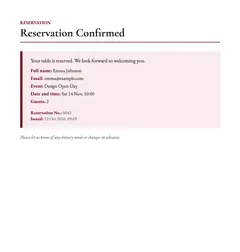
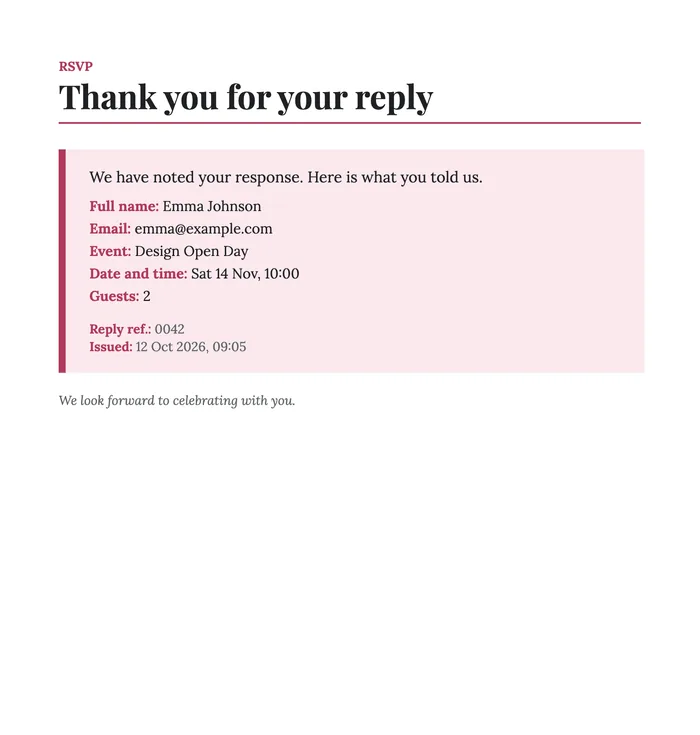
An RSVP confirmation thanks a guest for replying to an invitation and shows what they said. Couples planning weddings, parents arranging birthdays, clubs holding dinners and companies hosting parties use it to avoid confusion over who is coming and what they will eat. The rose-coloured block and serif heading give it a gentle, personal tone. The page does not decide for you who is invited. It only repeats the answers.
Questions to ask in your form
Create these questions in your Google Form. The PDF is built from the questions you ask, so rename, add or drop any of them.
- Your name Short answerFirst row.
- Email address Short answerWhere the reply is sent.
- Will you attend? Multiple choice'Joyfully accept' or 'Regretfully decline'.
- Number of guests Short answerInclude the guest themselves, and say so in the question.
- Meal choice DropdownOptional, for dinners.
- Dietary needs or song request ParagraphOptional.
What the PDF contains
A page headed 'Thank you for your reply' under the small label 'RSVP', with a rose rule below. A pink block says 'We have noted your response. Here is what you told us.' and lists every answer. A reply reference and issue time follow, and below it reads 'We look forward to celebrating with you.'
Set it up in three steps
- Install the add-on. Add FairSign Forms to PDF to Google Forms from the Google Workspace Marketplace. It is free to install.
- Pick this template. Open your form, click the puzzle-piece icon (or the three-dot menu, then Add-ons), and open FairSign Forms to PDF. In step 1, choose RSVP Confirmation from the template library. It opens as a Google Doc in your Drive.
- Turn on sending. Tell the add-on which question holds the email address, send a test to yourself, then switch on automatic sending. Each new response is turned into a PDF and emailed to the person.
Tips for the RSVP Confirmation
- The closing line says you look forward to celebrating, which reads oddly after a 'no'. Change it in the Doc to something neutral, such as 'Thank you for letting us know.'
- Ask for names of every guest in one paragraph question. It saves a follow-up email when you make place cards.
- Put a reply-by date in the form description, so late replies are the exception.
Questions people ask
Can I use it for a wedding?
Yes. Many people use it for weddings and parties. Check the closing line suits your replies, and edit it if not.
Is the guest list kept private?
Responses stay in your own Google account, in the response sheet and Drive. FairSign does not publish them.
Can I edit the RSVP Confirmation before I use it?
Yes. Choosing it in the add-on creates a Google Doc in your Drive. Change the wording, fonts or colours, add a logo, and keep the {{placeholders}} in double braces where answers should appear.