When to use the Webinar Registration
A webinar registration confirmation tells someone their seat is saved. Course creators, software teams, associations and coaches use it for live online sessions. The page says the joining link will follow, and reminds people to add the date to their calendar. Because the PDF is created the moment someone registers, it also acts as a record of what they signed up for, which is handy if the session moves.
Questions to ask in your form
Create these questions in your Google Form. The PDF is built from the questions you ask, so rename, add or drop any of them.
- Full name Short answerFirst row.
- Email address Short answerWhere the confirmation and later links are sent.
- Webinar title Short answerFixed text if you run one form per webinar.
- Date and time Short answerInclude the time zone, for example 14:00 GMT.
- Organisation Short answerOptional.
- Question for the speaker ParagraphOptional. Gives you material to prepare.
What the PDF contains
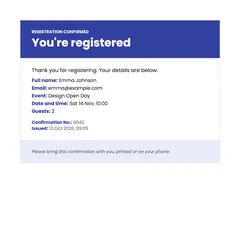
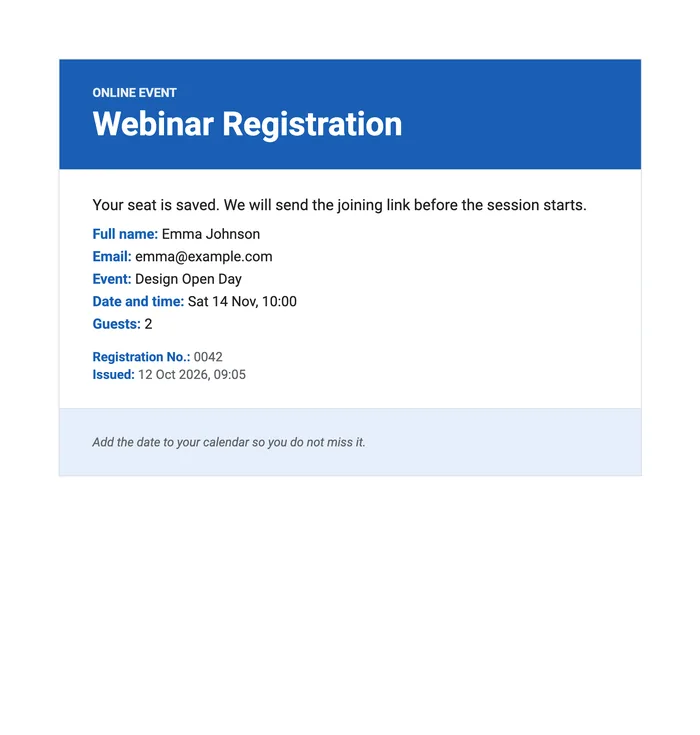
A blue banner with the label 'Online event' and the title 'Webinar Registration'. Underneath: 'Your seat is saved. We will send the joining link before the session starts.' Every answer follows as a label and value line, then a registration number and issue time. A pale strip reminds people to add the date to their calendar.
Set it up in three steps
- Install the add-on. Add FairSign Forms to PDF to Google Forms from the Google Workspace Marketplace. It is free to install.
- Pick this template. Open your form, click the puzzle-piece icon (or the three-dot menu, then Add-ons), and open FairSign Forms to PDF. In step 1, choose Webinar Registration from the template library. It opens as a Google Doc in your Drive.
- Turn on sending. Tell the add-on which question holds the email address, send a test to yourself, then switch on automatic sending. Each new response is turned into a PDF and emailed to the person.
Tips for the Webinar Registration
- Write the time zone in the date answer. International audiences are the commonest cause of missed sessions.
- FairSign does not send the joining link. Email it yourself, or put it into the Google Doc if the link is the same for everyone.
- A question for the speaker doubles as your content plan, and people attend more when they have asked something.
Questions people ask
Does it work with Zoom or Teams?
It does not connect to them. Paste your joining details into the Doc, or send them separately.
Can I record attendance?
No. The form records registrations, not who joined.
Can I edit the Webinar Registration before I use it?
Yes. Choosing it in the add-on creates a Google Doc in your Drive. Change the wording, fonts or colours, add a logo, and keep the {{placeholders}} in double braces where answers should appear.