When to use the Class Enrollment
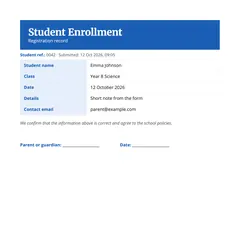
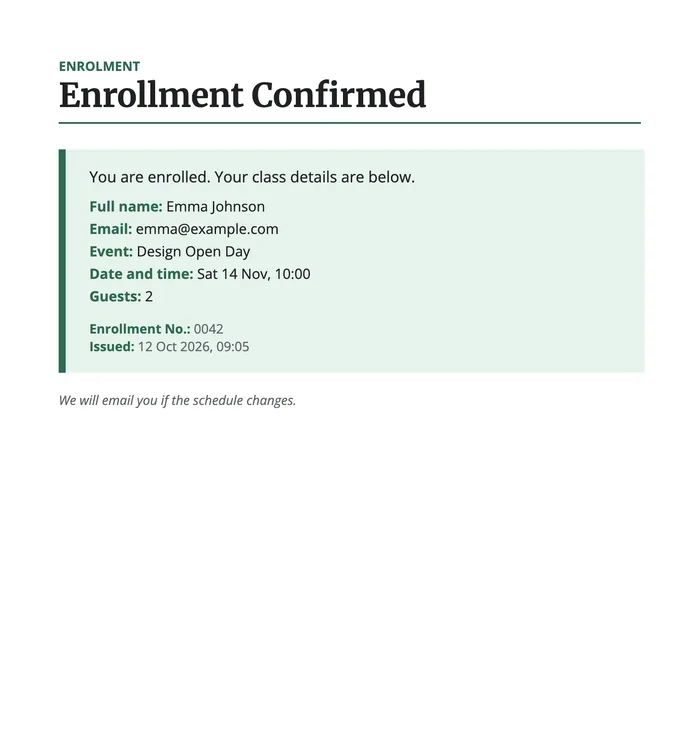
A class enrollment confirmation tells a student, or a parent, that a place is theirs. Dance schools, language teachers, evening classes, kids clubs and swimming coaches use it at the start of each term. The green-barred block lists the class details and the footer promises to email if the schedule changes. It is a quick way to turn a sign-up form into a document people can refer to when they forget the day.
Questions to ask in your form
Create these questions in your Google Form. The PDF is built from the questions you ask, so rename, add or drop any of them.
- Student name Short answerFirst row.
- Parent or student email Short answerWhere the confirmation is sent.
- Class DropdownFor example 'Beginner Spanish, Tuesday 18:30'.
- Start date DateThe first session.
- Level or age group DropdownOptional.
- Emergency contact Short answerOptional, for classes with children.
What the PDF contains
A page with a small label 'Enrolment', the title 'Enrollment Confirmed' and a green rule below it. A pale green block says 'You are enrolled. Your class details are below.' and lists every answer. An enrollment number and an issue time follow, and the page closes with 'We will email you if the schedule changes.'
Set it up in three steps
- Install the add-on. Add FairSign Forms to PDF to Google Forms from the Google Workspace Marketplace. It is free to install.
- Pick this template. Open your form, click the puzzle-piece icon (or the three-dot menu, then Add-ons), and open FairSign Forms to PDF. In step 1, choose Class Enrollment from the template library. It opens as a Google Doc in your Drive.
- Turn on sending. Tell the add-on which question holds the email address, send a test to yourself, then switch on automatic sending. Each new response is turned into a PDF and emailed to the person.
Tips for the Class Enrollment
- Put the room, the time and what to bring in the class option itself. People read the PDF the night before.
- Ask for an emergency contact only if the class needs it. Children's classes usually do.
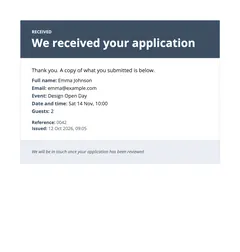
- A waitlist is a separate form. Use the Application Received template to say 'you are on the list'.
- Run the form again at the start of each term, with the same questions. People already know what to expect and the response sheet stays in one tidy format.
Questions people ask
Does it take the fee?
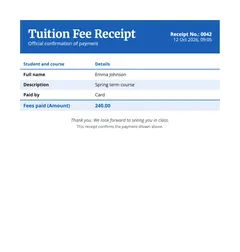
No. Send the form link after payment, or send a Payment Receipt separately.
Can it list a full term of dates?
Yes. Add a paragraph question for the dates, or put the term calendar in the Google Doc.
Can I edit the Class Enrollment before I use it?
Yes. Choosing it in the add-on creates a Google Doc in your Drive. Change the wording, fonts or colours, add a logo, and keep the {{placeholders}} in double braces where answers should appear.