When to use the Student Enrollment
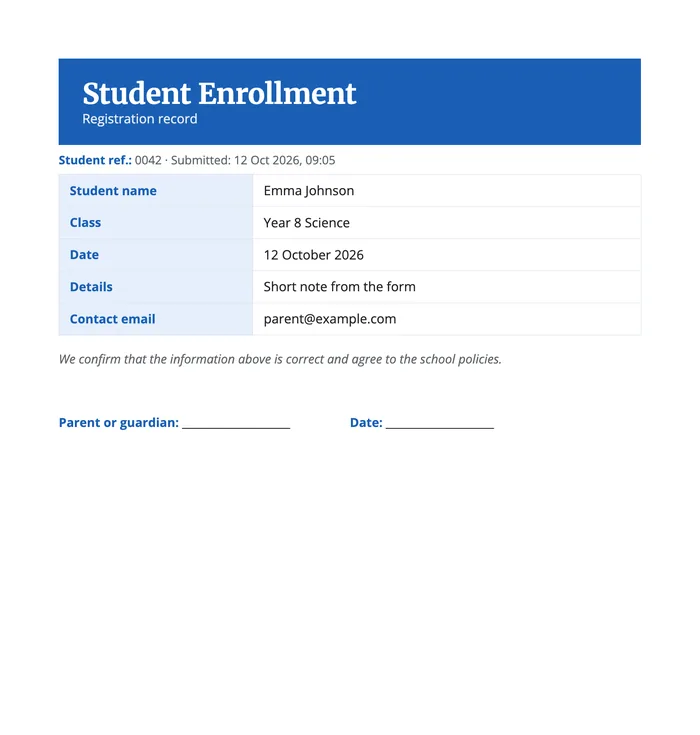
A student enrollment record gathers the details of a new student on one page: name, class, contact and any notes. Schools, tutoring centres, nurseries, music academies and sports programmes use it at the start of a year or term. A parent fills in the form online, and both sides get a copy. The blue banner reads 'Student Enrollment' and 'Registration record', with a declaration that the information is correct and that school policies are accepted.
Questions to ask in your form
Create these questions in your Google Form. The PDF is built from the questions you ask, so rename, add or drop any of them.
- Student name Short answerFirst row of the table.
- Parent or guardian email Short answerWhere the copy is sent.
- Class or year group DropdownOne option per class.
- Date of birth DateOnly if you need it.
- Medical or dietary notes ParagraphOptional. Collect only what you will use.
- I agree to the school policies CheckboxesA record of agreement, with a link to the policies.
What the PDF contains
A blue banner headed 'Student Enrollment' with 'Registration record' under it. A table with shaded labels lists each answer, with a student reference and the submission time. Below the table, 'We confirm that the information above is correct and agree to the school policies.' is followed by blank lines for 'Parent or guardian' and the date.
Set it up in three steps
- Install the add-on. Add FairSign Forms to PDF to Google Forms from the Google Workspace Marketplace. It is free to install.
- Pick this template. Open your form, click the puzzle-piece icon (or the three-dot menu, then Add-ons), and open FairSign Forms to PDF. In step 1, choose Student Enrollment from the template library. It opens as a Google Doc in your Drive.
- Turn on sending. Tell the add-on which question holds the email address, send a test to yourself, then switch on automatic sending. Each new response is turned into a PDF and emailed to the person.
Tips for the Student Enrollment
- Children's data deserves care. Keep the response sheet and the Drive folder shared with as few staff as you can.
- A ticked checkbox records that someone agreed in the form. If your school needs a handwritten signature, print the PDF and have it signed.
- Ask for one parent or guardian email, and say so in the question. The PDF goes to the address you choose as the recipient.
Questions people ask
Is this form compliant with student privacy law?
That depends on your country and your school. FairSign provides a layout, and the rules on collecting children's data are yours to check.
Can I enrol siblings together?
Use one response per child, so each PDF shows one name.
Can I edit the Student Enrollment before I use it?
Yes. Choosing it in the add-on creates a Google Doc in your Drive. Change the wording, fonts or colours, add a logo, and keep the {{placeholders}} in double braces where answers should appear.