When to use the Course Evaluation
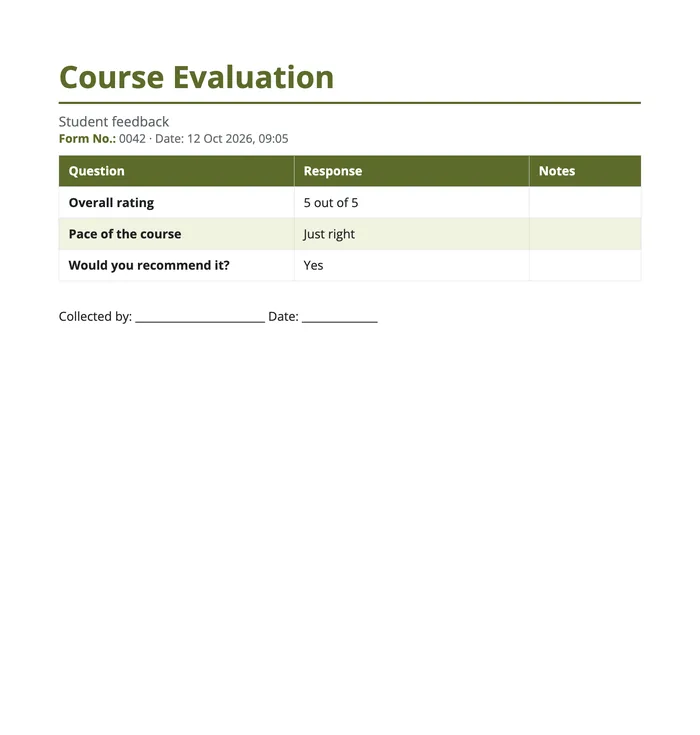
A course evaluation captures what students think of a course and prints each response as a table. Teachers, training providers, universities and workshop leaders use it at the end of a course. The questions appear down the left, the answers in the middle and a notes column on the right for the person reading. The olive heading and plain table suit a form with many short questions.
Questions to ask in your form
Create these questions in your Google Form. The PDF is built from the questions you ask, so rename, add or drop any of them.
- Overall rating Linear scaleOne to five.
- Pace of the course Multiple choiceToo slow, about right, too fast.
- Would you recommend it? Multiple choiceYes, maybe, no.
- What was most useful? ParagraphOne or two sentences.
- What should change? ParagraphSpecific suggestions.
- Your email Short answerOptional. Needed to send a copy back.
What the PDF contains
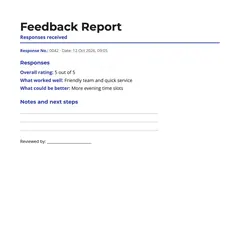
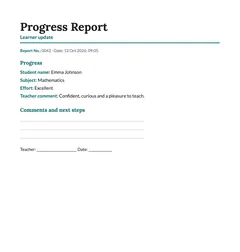
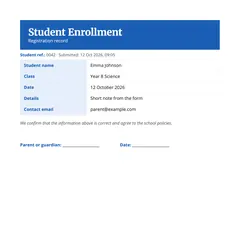
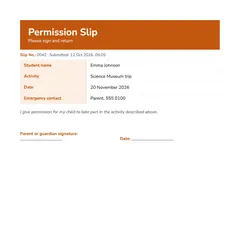
A page headed 'Course Evaluation' with 'Student feedback' and a form number with the date. An olive table has the columns 'Question', 'Response' and 'Notes', with one row per question you asked. Below it are blank lines for 'Collected by' and the date.
Set it up in three steps
- Install the add-on. Add FairSign Forms to PDF to Google Forms from the Google Workspace Marketplace. It is free to install.
- Pick this template. Open your form, click the puzzle-piece icon (or the three-dot menu, then Add-ons), and open FairSign Forms to PDF. In step 1, choose Course Evaluation from the template library. It opens as a Google Doc in your Drive.
- Turn on sending. Tell the add-on which question holds the email address, send a test to yourself, then switch on automatic sending. Each new response is turned into a PDF and emailed to the person.
Tips for the Course Evaluation
- Keep the form to ten questions or fewer. Response rates fall quickly after that.
- Say whether the form is anonymous. If it is, do not ask for names or emails.
- Use the blank Notes column to record the action you decide to take. It turns the PDF into a working document.
- Share the form while students are still in the room, or send the link the same day. Feedback gathered a week later is shorter and less specific.
Questions people ask
Does it summarise across students?
No. It makes one PDF per response. Use the response sheet or charts in Google Forms for totals.
Can students stay anonymous?
Yes. Skip the email question, and the PDF is not sent.
Can I edit the Course Evaluation before I use it?
Yes. Choosing it in the add-on creates a Google Doc in your Drive. Change the wording, fonts or colours, add a logo, and keep the {{placeholders}} in double braces where answers should appear.