When to use the Progress Report
A progress report tells a parent, or the learner, how things are going. Class teachers, tutors, music teachers, coaches and youth workers use one at the end of a unit or term. A form lets the teacher answer a few questions per learner, and the PDF gives the family a neat page with a section for comments and next steps. The teal headings keep it friendly and quick to read.
Questions to ask in your form
Create these questions in your Google Form. The PDF is built from the questions you ask, so rename, add or drop any of them.
- Student name Short answerFirst row.
- Parent or student email Short answerWhere the report goes.
- Subject DropdownOne option per subject.
- Effort Multiple choiceExcellent, good, needs improvement.
- Teacher comment ParagraphTwo or three specific sentences.
- Next steps ParagraphWhat the learner will do next.
What the PDF contains
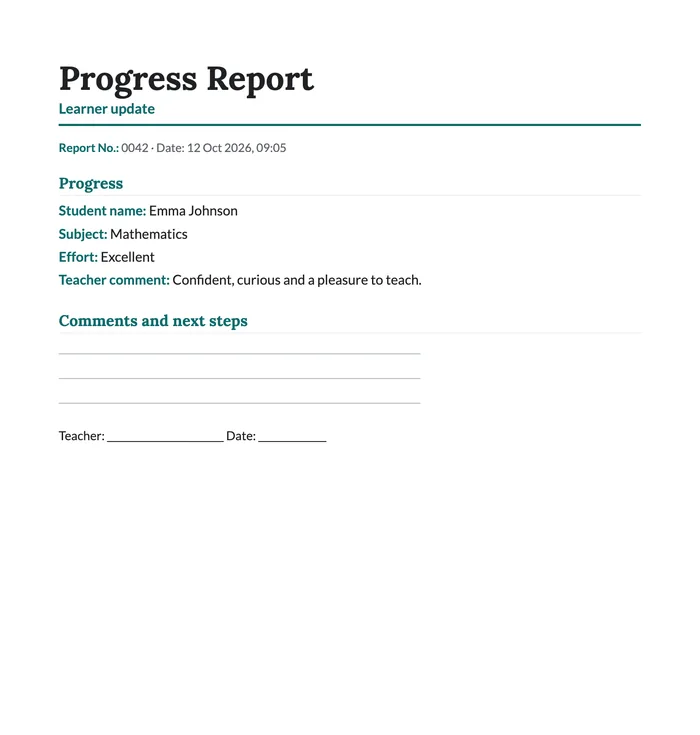
A page headed 'Progress Report' with 'Learner update' in teal and a report number with the date. Under 'Progress', each answer is a label and value line. Under 'Comments and next steps' there are blank ruled lines for handwritten notes, and a 'Teacher' line and a date line sit at the bottom.
Set it up in three steps
- Install the add-on. Add FairSign Forms to PDF to Google Forms from the Google Workspace Marketplace. It is free to install.
- Pick this template. Open your form, click the puzzle-piece icon (or the three-dot menu, then Add-ons), and open FairSign Forms to PDF. In step 1, choose Progress Report from the template library. It opens as a Google Doc in your Drive.
- Turn on sending. Tell the add-on which question holds the email address, send a test to yourself, then switch on automatic sending. Each new response is turned into a PDF and emailed to the person.
Tips for the Progress Report
- Say something specific the learner did well before you say what needs work. Families read the first lines most carefully.
- Use a fixed set of options for effort and attainment, so reports are consistent across your classes.
- Take care with sensitive information. A report sent to the wrong address cannot be recalled, so check the recipient column before each batch.
- Send reports in one batch, at the same time for every family, and tell parents when to expect them. It reduces anxious messages in between.
Questions people ask
Can I produce reports for a whole class?
Yes, with one form response per learner. Each learner then gets their own PDF.
Does it show grades?
It shows whatever you enter. Add a Grade question if you want one.
Can I edit the Progress Report before I use it?
Yes. Choosing it in the add-on creates a Google Doc in your Drive. Change the wording, fonts or colours, add a logo, and keep the {{placeholders}} in double braces where answers should appear.