When to use the Expense Claim
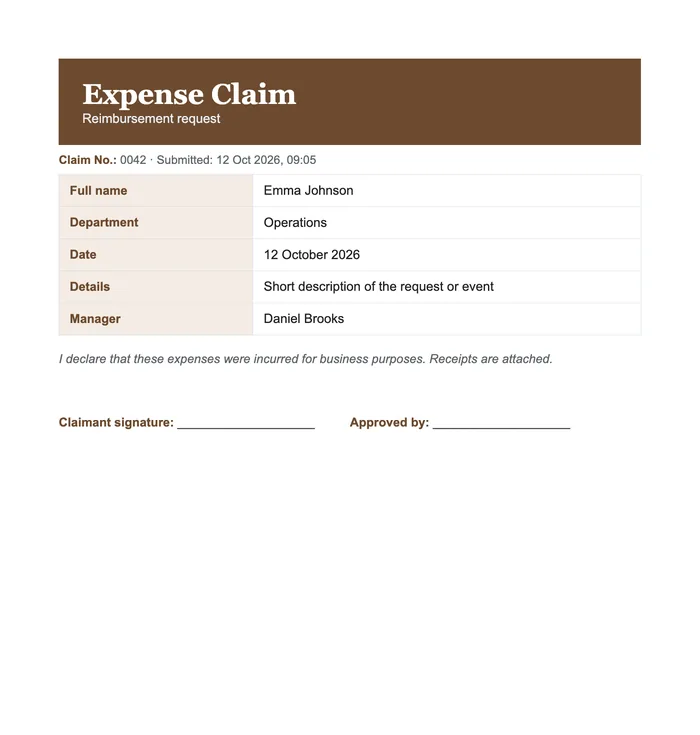
An expense claim lets someone ask to be paid back for money spent on the business: a train fare, a client lunch, office supplies. Small firms, clubs, charities and project teams use it to keep claims uniform and to give the finance person one page per claim. The brown banner reads 'Expense Claim' and 'Reimbursement request'. A declaration states that the costs were for business, and the page asks for a claimant signature and an approval.
Questions to ask in your form
Create these questions in your Google Form. The PDF is built from the questions you ask, so rename, add or drop any of them.
- Full name Short answerFirst row.
- Work email Short answerWhere the copy is sent.
- What was the expense? Short answerFor example 'Taxi to client meeting'.
- Date of expense DateThe date on the receipt.
- Amount Short answerInclude the currency.
- Link to receipt photo Short answerA shared folder link. Files are not attached.
What the PDF contains
A brown banner reading 'Expense Claim' with 'Reimbursement request' under it, and a claim number with the submission time. A shaded-label table lists your answers. Below it, 'I declare that these expenses were incurred for business purposes. Receipts are attached.' with blank lines for the claimant signature and 'Approved by'.
Set it up in three steps
- Install the add-on. Add FairSign Forms to PDF to Google Forms from the Google Workspace Marketplace. It is free to install.
- Pick this template. Open your form, click the puzzle-piece icon (or the three-dot menu, then Add-ons), and open FairSign Forms to PDF. In step 1, choose Expense Claim from the template library. It opens as a Google Doc in your Drive.
- Turn on sending. Tell the add-on which question holds the email address, send a test to yourself, then switch on automatic sending. Each new response is turned into a PDF and emailed to the person.
Tips for the Expense Claim
- The declaration says receipts are attached. FairSign cannot attach them, so ask for a link or a reference in the form, or edit the sentence.
- Set a rule in the form description, such as 'Claims over 100 need prior approval', so they arrive complete.
- Check your tax authority's rules for how long you must keep receipts and claims.
- Remind staff to keep the original receipts. Even when the claim arrives by form, many finance teams still want the paper or a clear photo on file.
Note. This template is not legal or HR advice. Employment, safety and data protection rules differ by country. Check what applies to you.
Questions people ask
Can it add up several expenses?
No. One response is one expense. Staff submit the form again for each one.
Does it pay the claim?
No. It records the request. Payment happens through your bank or payroll.
Can I edit the Expense Claim before I use it?
Yes. Choosing it in the add-on creates a Google Doc in your Drive. Change the wording, fonts or colours, add a logo, and keep the {{placeholders}} in double braces where answers should appear.