When to use the Performance Review Summary
A review summary prints the answers from a performance or peer review as a confidential one-page memo. Managers, team leads, schools and small organisations use it at the end of a review period, so each person has a clean record. Reviewers fill in a form, and the PDF goes to the named recipient. The plum heading and plain memo layout keep the focus on the words, and the footer says the summary is confidential.
Questions to ask in your form
Create these questions in your Google Form. The PDF is built from the questions you ask, so rename, add or drop any of them.
- Employee name Short answerFirst row.
- Recipient email Short answerChoose it as the recipient. Consider who should see it.
- Review period Short answerFor example 'July to December 2027'.
- Key strengths ParagraphSpecific examples work best.
- Areas to develop ParagraphSay what would help.
- Goals for next period ParagraphTwo or three, not ten.
What the PDF contains
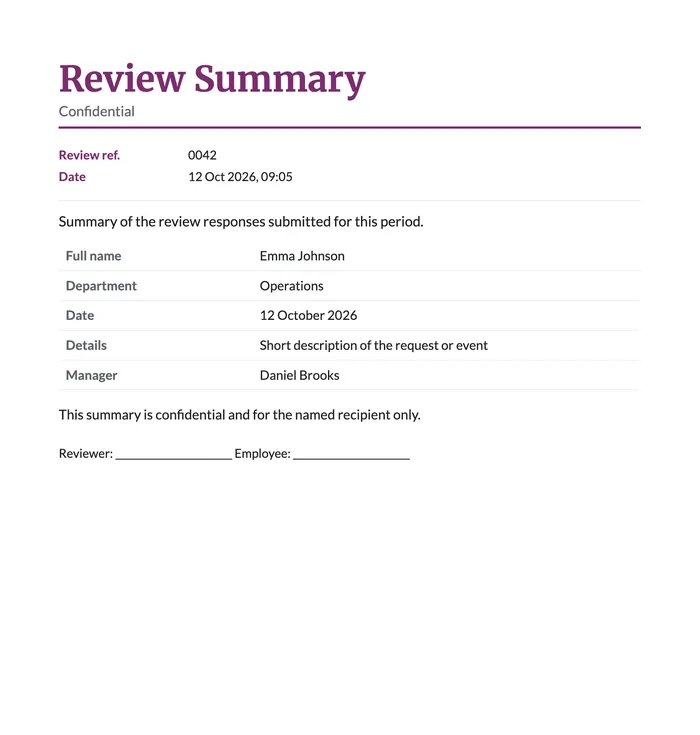
A page headed 'Review Summary' with 'Confidential' in plum and a review reference with the date. The line 'Summary of the review responses submitted for this period.' leads into a list of answers. The page closes with 'This summary is confidential and for the named recipient only.' and blank lines for the reviewer and the employee.
Set it up in three steps
- Install the add-on. Add FairSign Forms to PDF to Google Forms from the Google Workspace Marketplace. It is free to install.
- Pick this template. Open your form, click the puzzle-piece icon (or the three-dot menu, then Add-ons), and open FairSign Forms to PDF. In step 1, choose Performance Review Summary from the template library. It opens as a Google Doc in your Drive.
- Turn on sending. Tell the add-on which question holds the email address, send a test to yourself, then switch on automatic sending. Each new response is turned into a PDF and emailed to the person.
Tips for the Performance Review Summary
- Decide who gets each PDF before you start. A review sent to the wrong address cannot be recalled.
- Keep comments about behaviour and work, with examples. Avoid personal remarks that do not relate to the job.
- Store reviews carefully. Restrict the response sheet and Drive folder, and keep them only as long as your policy says.
Note. This template is not legal or HR advice. Employment and data protection rules for reviews and records differ by country. Check what applies to you.
Questions people ask
Is it suitable for 360 reviews?
You can collect several reviews with one form and produce one PDF per response. It does not combine them.
Is it secure?
Responses stay in your Google account. Who can see them depends on how you share the form, sheet and folder.
Can I edit the Performance Review Summary before I use it?
Yes. Choosing it in the add-on creates a Google Doc in your Drive. Change the wording, fonts or colours, add a logo, and keep the {{placeholders}} in double braces where answers should appear.