When to use the Work Order
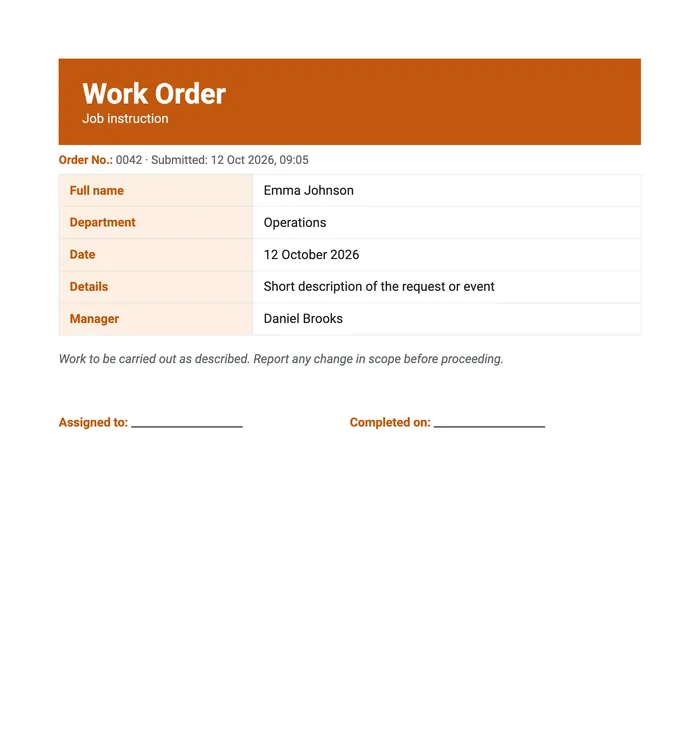
A work order is a written instruction to do a job, with details of what, where and by whom. Maintenance teams, facilities managers, repair shops and field service crews use them. An internal form lets anyone log a job, and the PDF goes to the person who must do it. The orange banner reads 'Work Order' and 'Job instruction', and a footer asks the worker to report any change in scope before going ahead.
Questions to ask in your form
Create these questions in your Google Form. The PDF is built from the questions you ask, so rename, add or drop any of them.
- Requested by Short answerFirst row.
- Email of the person assigned Short answerChoose it as the recipient so the PDF goes to them.
- Job description ParagraphWhat needs doing, in plain words.
- Location Short answerBuilding, room or address.
- Priority DropdownUrgent, normal, low.
- Due date DateWhen it should be finished.
What the PDF contains
An orange banner headed 'Work Order' with 'Job instruction' under it. A shaded-label table lists every answer, with an order number and the time submitted. Under the table, 'Work to be carried out as described. Report any change in scope before proceeding.' and blank lines for 'Assigned to' and 'Completed on'.
Set it up in three steps
- Install the add-on. Add FairSign Forms to PDF to Google Forms from the Google Workspace Marketplace. It is free to install.
- Pick this template. Open your form, click the puzzle-piece icon (or the three-dot menu, then Add-ons), and open FairSign Forms to PDF. In step 1, choose Work Order from the template library. It opens as a Google Doc in your Drive.
- Turn on sending. Tell the add-on which question holds the email address, send a test to yourself, then switch on automatic sending. Each new response is turned into a PDF and emailed to the person.
Tips for the Work Order
- Use the assignee's email as the recipient, so the PDF lands with the person doing the job. Copy yourself too.
- Write the description as an instruction, not a complaint. 'Replace flickering light in room 4' is easier to act on.
- The completion line is written by hand. A simple sheet that marks jobs 'done' keeps the record complete.
Note. This template is not legal or HR advice. Employment, safety and data protection rules differ by country. Check what applies to you.
Questions people ask
Does it track progress?
No. It creates a PDF for each job. Track progress in your response sheet by adding a status column.
Can it include costs?
Add a cost question if you want one. For priced work, an invoice or a quote is a better fit.
Can I edit the Work Order before I use it?
Yes. Choosing it in the add-on creates a Google Doc in your Drive. Change the wording, fonts or colours, add a logo, and keep the {{placeholders}} in double braces where answers should appear.