When to use the Training Certificate
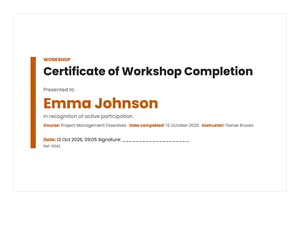
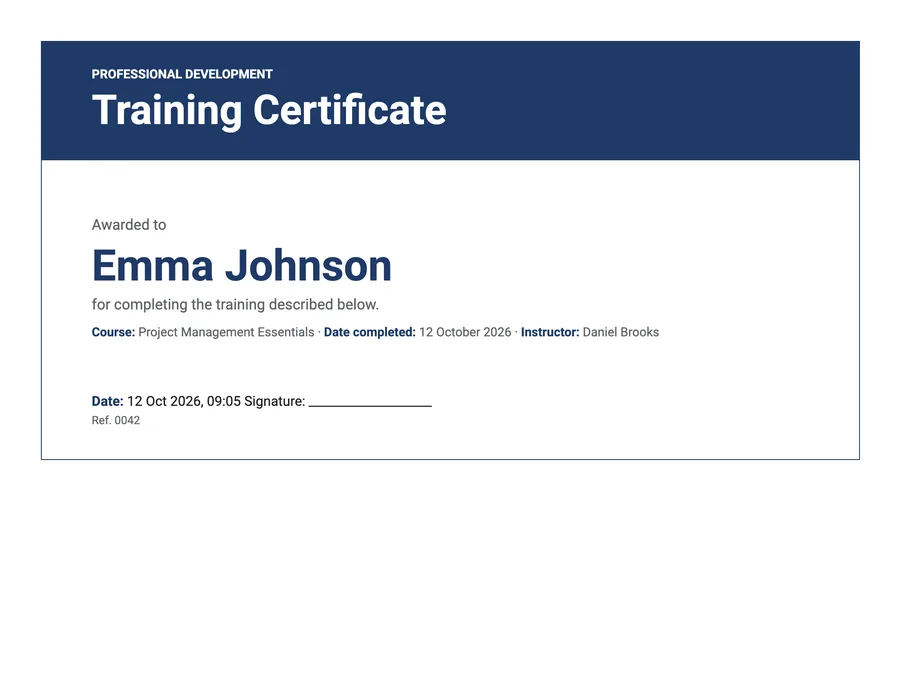
A training certificate is the paper trail for work and professional learning: first aid, fire safety, software skills, a leadership course. Training providers email one to each learner. Employers keep copies as evidence that staff completed required sessions. This layout is plain and left aligned, so it looks like a record rather than a decoration and works well in a staff file.
Questions to ask in your form
Create these questions in your Google Form. The PDF is built from the questions you ask, so rename, add or drop any of them.
- Full name Short answerThe first question is the name on the certificate.
- Work email Short answerWhere the PDF is sent.
- Training title DropdownA dropdown avoids spelling differences between sessions.
- Training date DateShown with the extra details.
- Duration Short answerFor example '3 hours'.
- Trainer Short answerOptional.
What the PDF contains
A clean page with a navy header that reads 'Professional development', then 'Awarded to' above the learner's name and 'for completing the training described below'. The details are listed in rows, followed by a date, a signature line and a reference number.
Set it up in three steps
- Install the add-on. Add FairSign Forms to PDF to Google Forms from the Google Workspace Marketplace. It is free to install.
- Pick this template. Open your form, click the puzzle-piece icon (or the three-dot menu, then Add-ons), and open FairSign Forms to PDF. In step 1, choose Training Certificate from the template library. It opens as a Google Doc in your Drive.
- Turn on sending. Tell the add-on which question holds the email address, send a test to yourself, then switch on automatic sending. Each new response is turned into a PDF and emailed to the person.
Tips for the Training Certificate
- If a course expires, such as annual refresher training, ask for the next due date and keep a spreadsheet of expiry dates. The form responses already sit in one.
- Add the accreditation or body name to the Google Doc if you work under one. Do not add it unless it is true for the course.
- Use one form per course, so the title is fixed and learners cannot pick the wrong one.
Questions people ask
Does this count as an accredited certificate?
A certificate from this template is only as official as the organisation issuing it. FairSign provides the layout, not accreditation.
Can learners download it later?
The PDF is emailed and a copy is saved in a Drive folder the add-on creates, so you can find it again.
Can I edit the Training Certificate before I use it?
Yes. Choosing it in the add-on creates a Google Doc in your Drive. Change the wording, fonts or colours, add a logo, and keep the {{placeholders}} in double braces where answers should appear.